Open InfoPath forms without InfoPath
View, print and save InfoPath forms with their original layout – now that InfoPath has been retired. Free, in your browser, and your files never leave your device.

Select the forms (.xml) and their template (.xsn), or drag them here
🔒 Opened in your browser: nothing is uploaded
- Free
- No sign-up
- Original layout
- Attachments included
- PC, Mac and mobile
How it works
- Choose the filled-in form (
.xml) – and its template (.xsn) for the original layout. You can select both at once. - The form appears as it did in InfoPath: sections, tables, drop-down lists, check boxes and pictures.
- Print it or save it as PDF, and save the attached files.
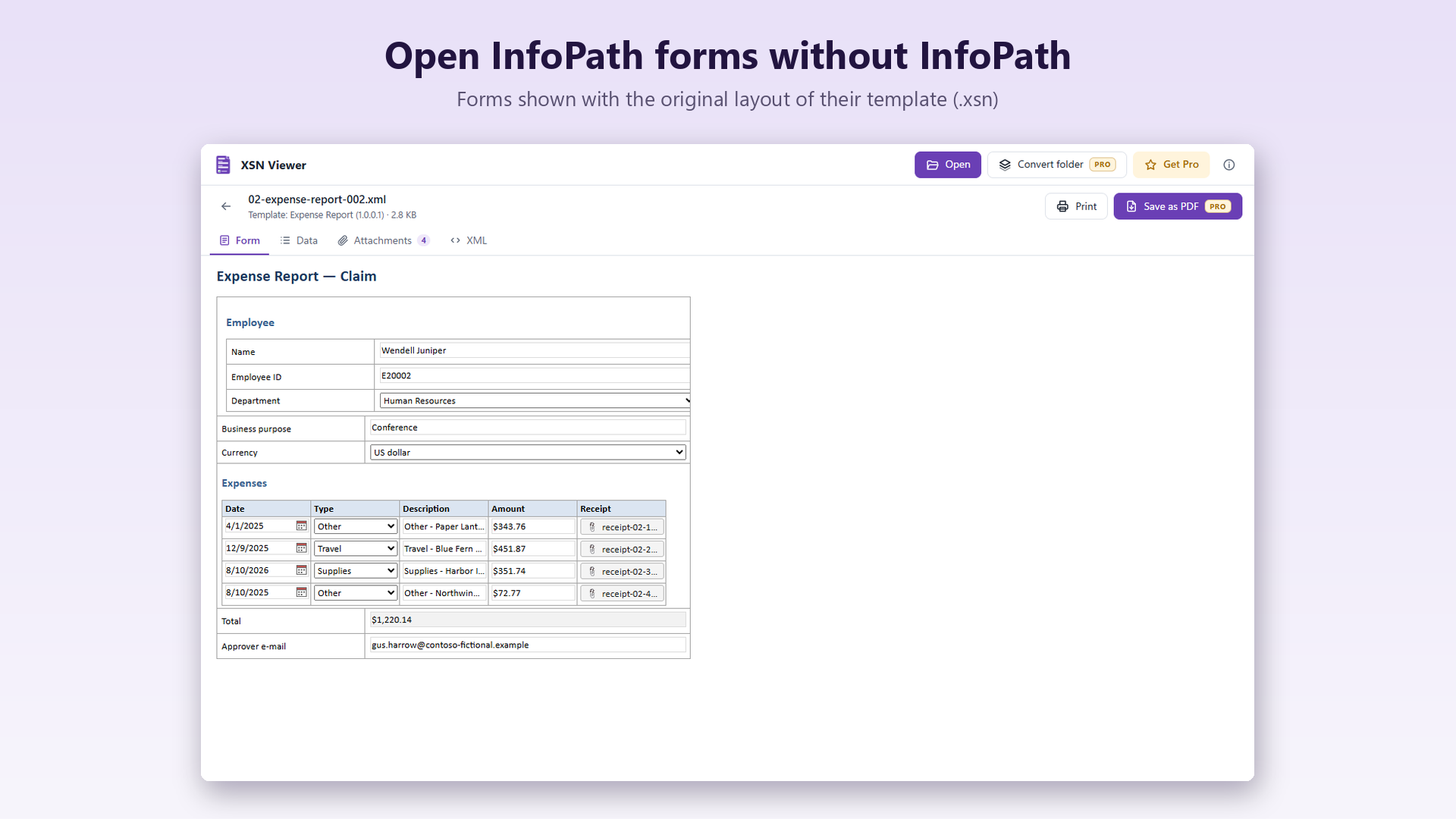
What you get
- The original layout, from the views stored in the template – including forms with several views.
- Without the template too: a clean list of fields, dates, amounts and repeating tables instead of raw XML.
- Attachments stored inside the forms, saved with their original names.
- Older forms upgraded to newer versions of their template, as InfoPath did.
- Templates remembered: open a template once and the next forms of the same library open with their layout.
- Private: the files are read by your browser. Nothing is uploaded, so it is fine for HR, finance and health forms.
Where are my forms?
In SharePoint, each submitted form is an XML file in its form library, and the template is in the library's Forms folder. Here is how to find and download them.
A whole library to archive? Use the Windows app
XSN Viewer for Windows converts entire folders of forms to PDF with the original layout, extracts all the attachments and exports the data of all the forms to one Excel table.
Guides
- How to open an InfoPath form without InfoPathView .xml forms with their original layout, in your browser.
- How to convert InfoPath forms to PDFKeep a PDF copy of every form, with the original layout.
- InfoPath retirement: what to do with your formsDates, what still works and how to archive old forms.
- Where to find the InfoPath template (.xsn)The template brings back the original layout. Here is where it is.
- How to extract attachments from InfoPath formsGet the attached files out of the XML, with their names.
- How to export InfoPath form data to ExcelOne row per form, one column per field.
- What is an .xsn file and how to open itThe InfoPath template: what it contains and how to view it.
Frequently asked questions
Is XSN Viewer free?
Yes. Opening, viewing and printing forms is free, with no sign-up and no ads. The Windows app adds batch conversion with a one-time Pro purchase.
Are my files uploaded?
No. The forms are read by your browser on your device. Nothing is sent to us or to anyone else, and the templates you open are remembered only in your browser.
Do I need the .xsn template?
For the original layout, yes. Without it you still see all the data as a clear list of fields, with the attachments.
Can I fill in or submit forms?
No. XSN Viewer is for reading, printing and archiving existing forms. For new forms, Microsoft recommends Power Apps or Microsoft Forms.
Does it run the rules and code of the form?
No. Rules, scripts and code are never run, and data connections to SharePoint or databases are not used: what you see is the data saved in the form.
Which InfoPath versions are supported?
Forms and templates from InfoPath 2003 to InfoPath 2013, including browser-enabled forms from SharePoint.